

Your team and getting help
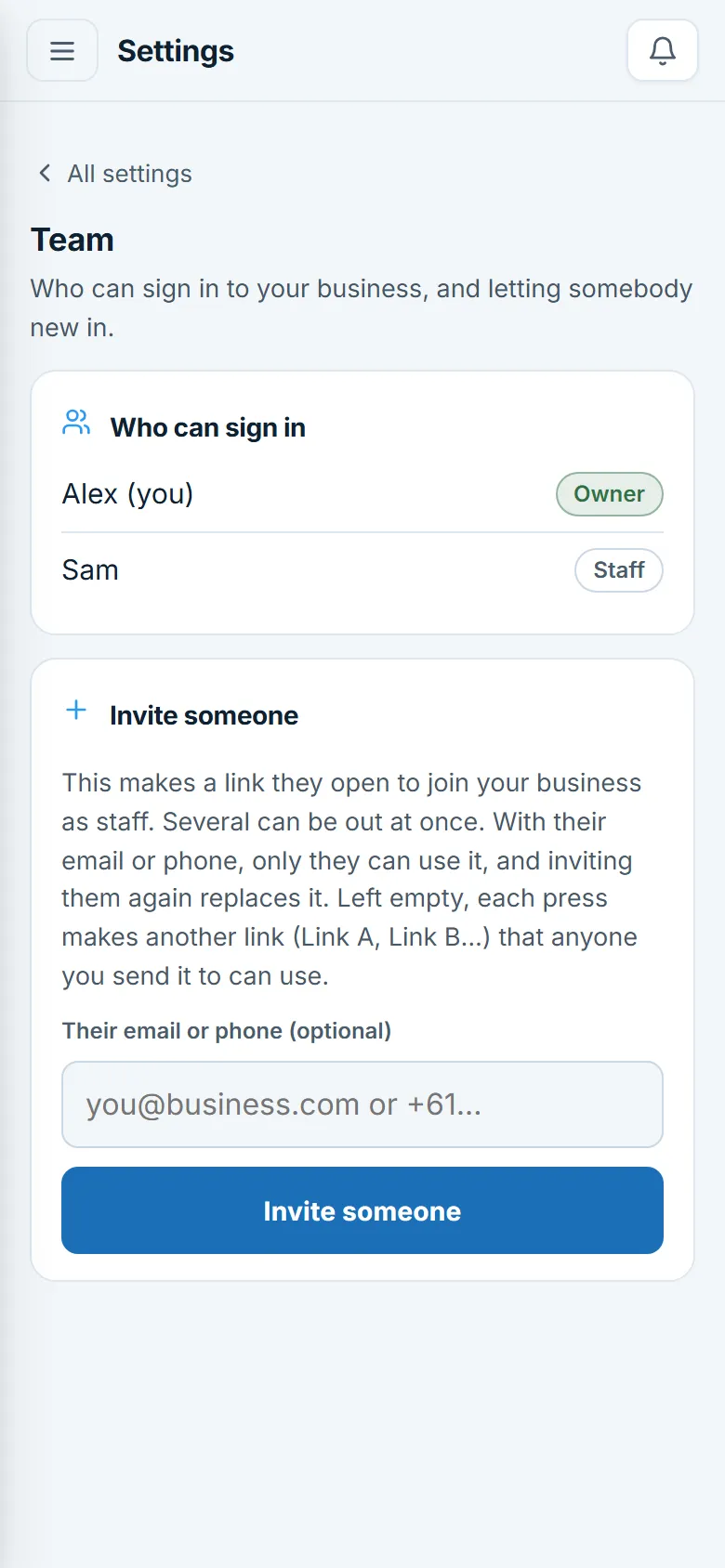
The owner invites staff from Settings > Team. Anyone can ask us for help from the app.
Invite someone
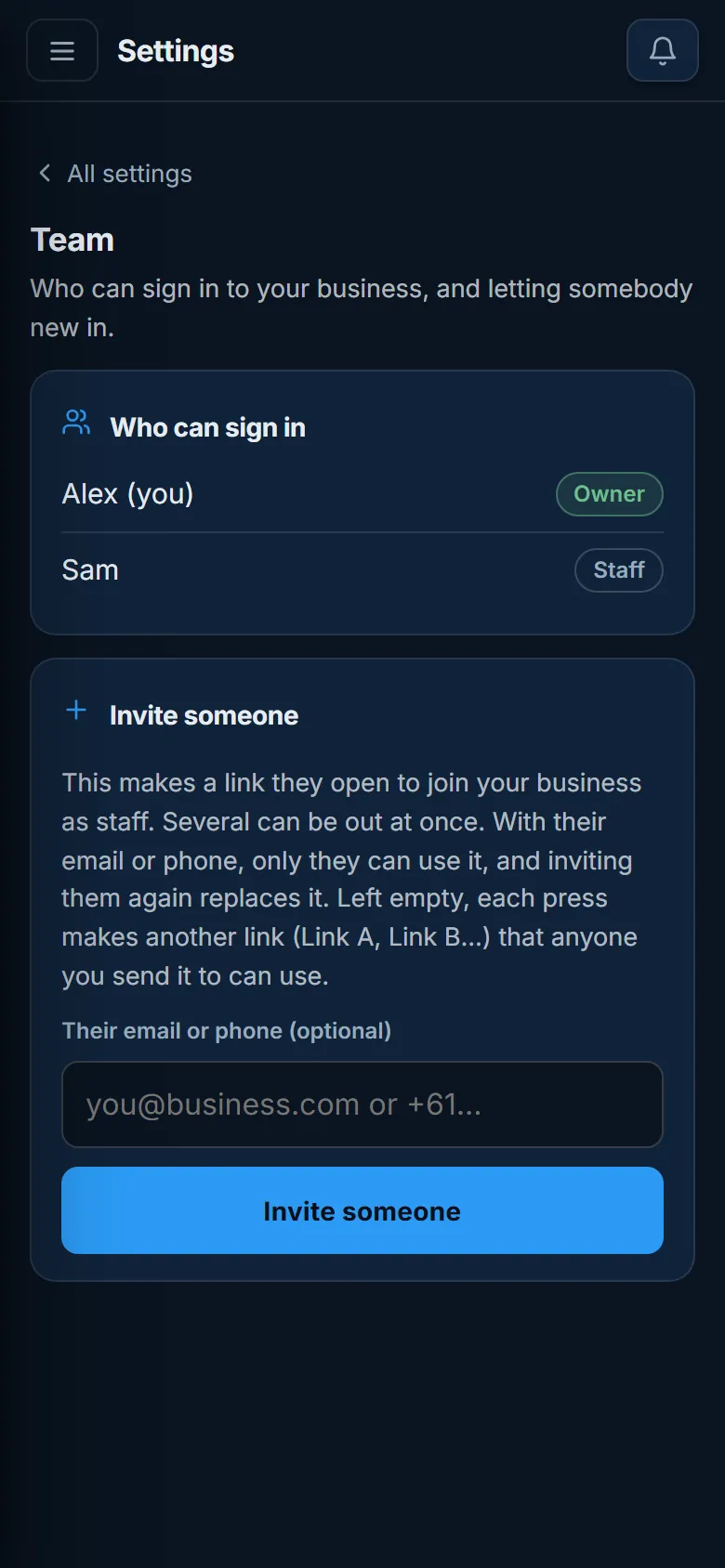
- Go to Settings > Team.
- Type their email or phone if you like, then tap Invite someone.
- Tap Share or Copy link and send it to them.
Owner only
Only the owner sees Team.
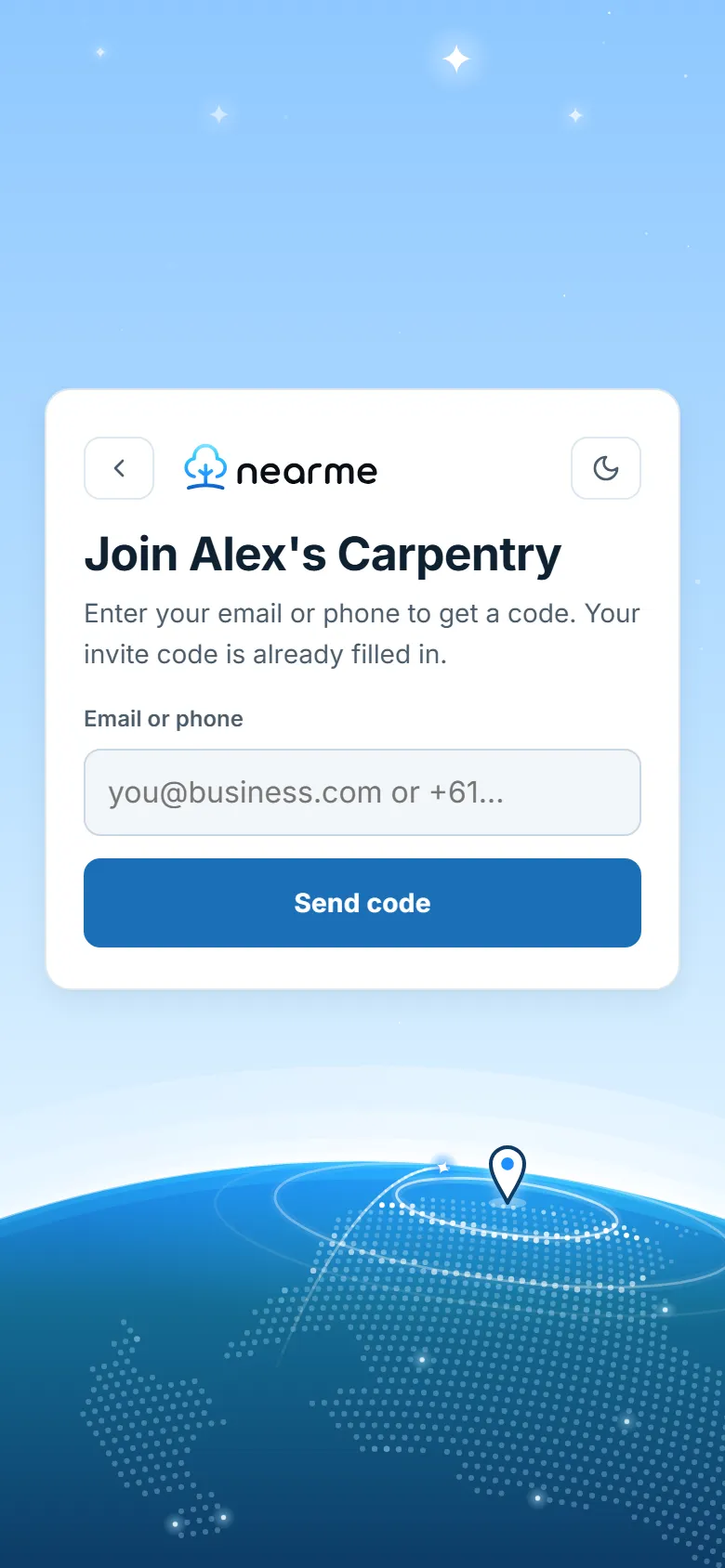
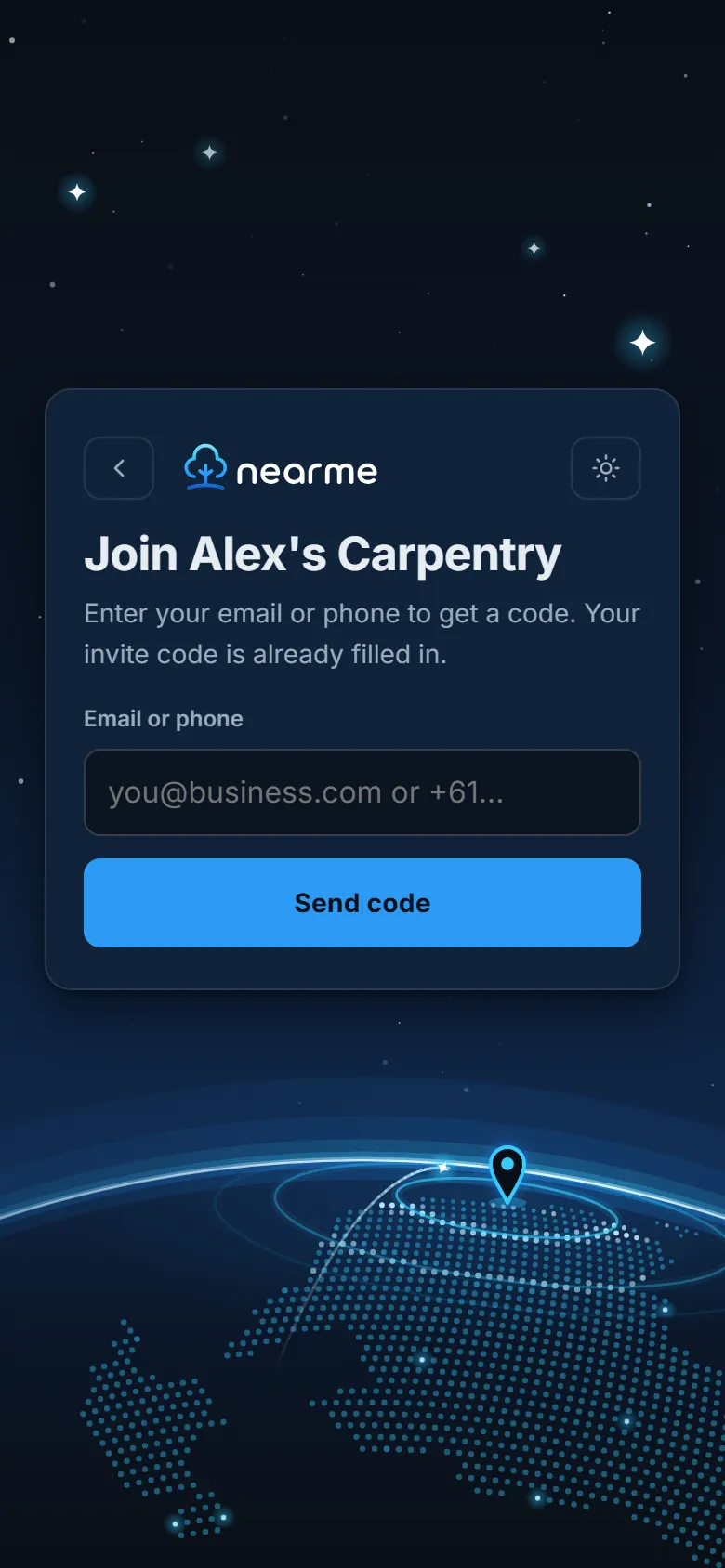
The link opens Join and your business name. They enter their email or phone, tap Send code, type the 6-digit code, add their name and tap Join.
Who can see a chat
A new chat starts as Only you and the owner. To change who can see it, see Chats.
Who can publish
On a website NearMe built, staff can publish or discard their own changes. See Check and approve.
Signing someone out
Sign out in Settings > Team signs them out on every device. They stay on your team and can sign in again. To take someone off your team, ask us through Get help.
Get help
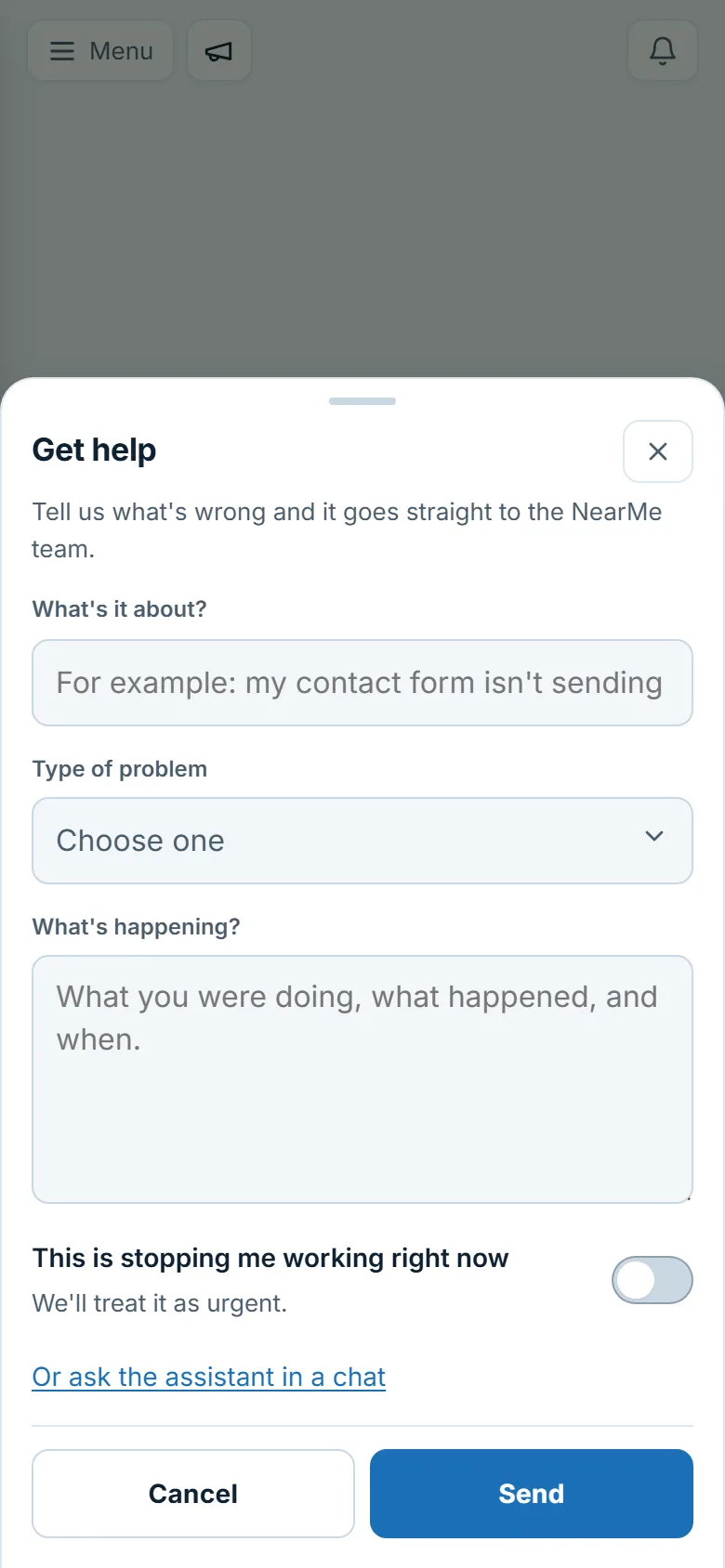
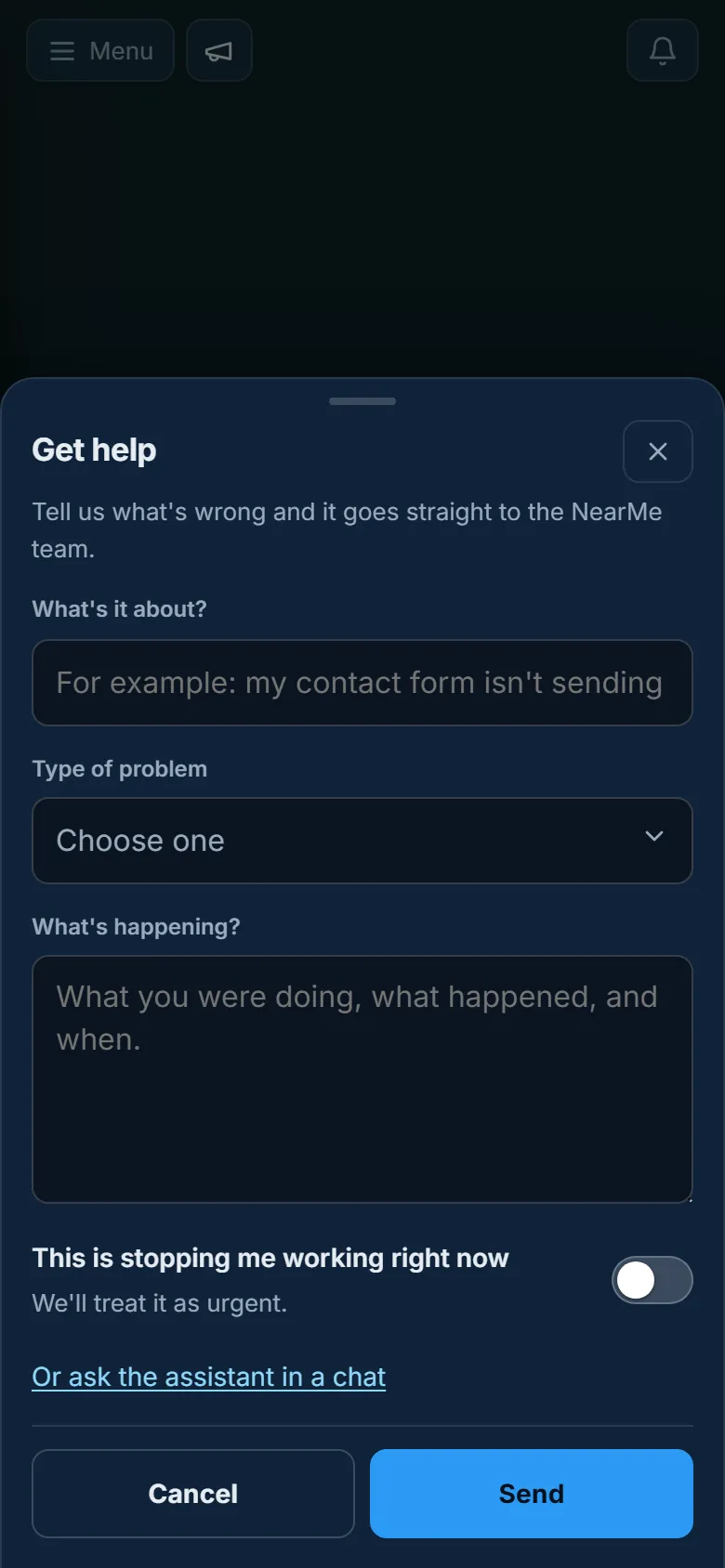
- Tap Get help in the sidebar. On a phone, it’s in the menu.
- Say what it’s about and choose the Type of problem.
- If it’s stopping you working, switch on This is stopping me working right now. Tap Send.
Someone from the team gets back to you, and your assistant checks in too.
Still stuck? Tap Get help in the app, or email connect@nearme.com.au.