

Check and approve
Nothing goes live until you say so.
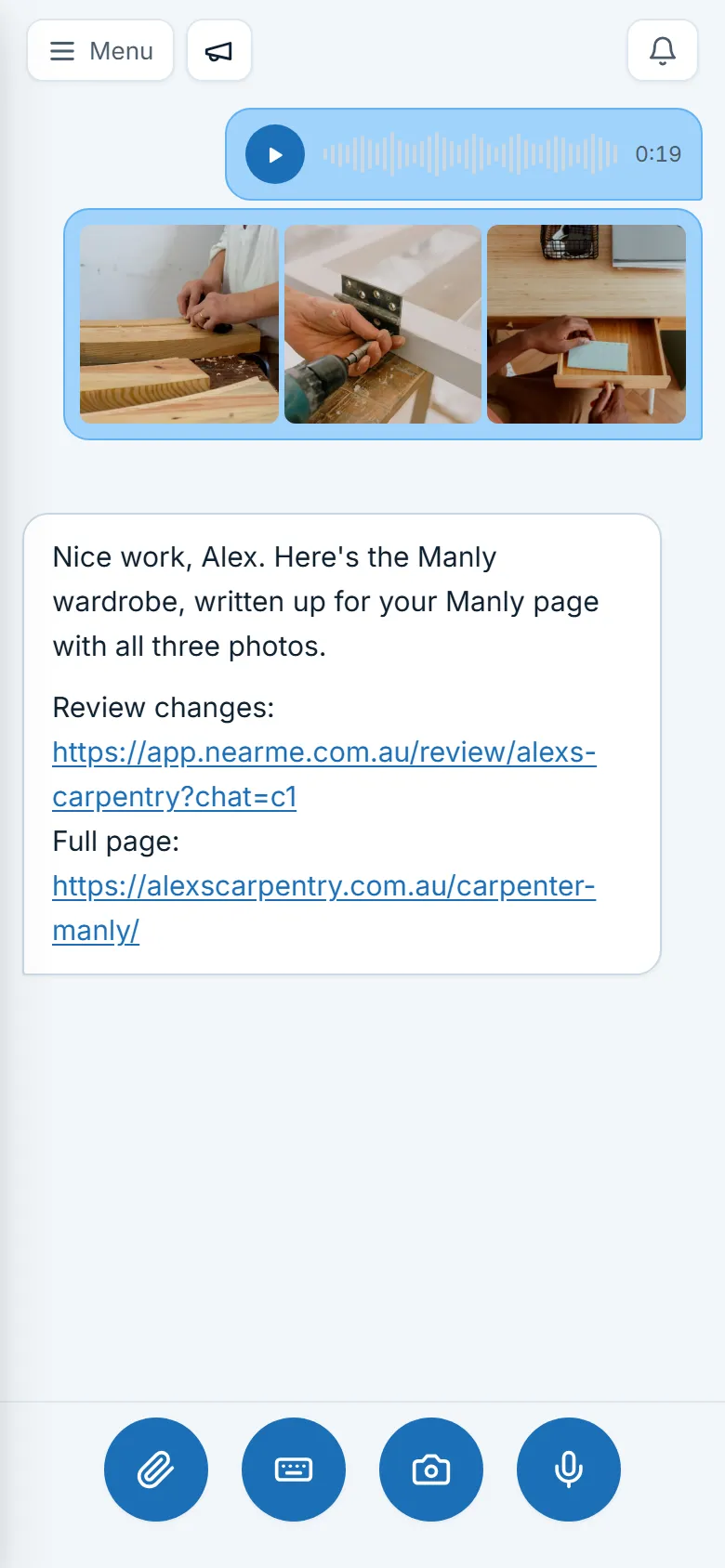
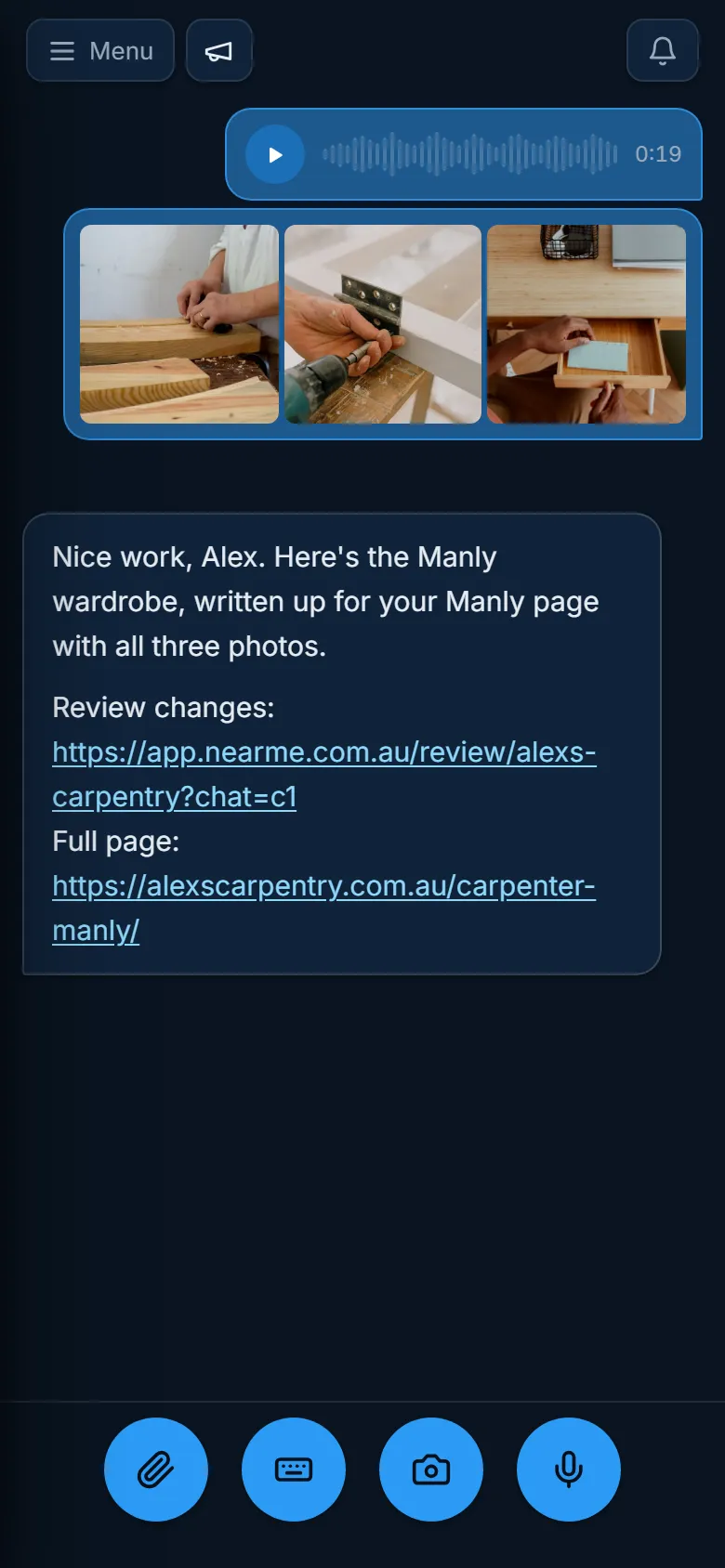
- When the write-up is ready, NearMe’s reply has two links: Review changes and the Full page.
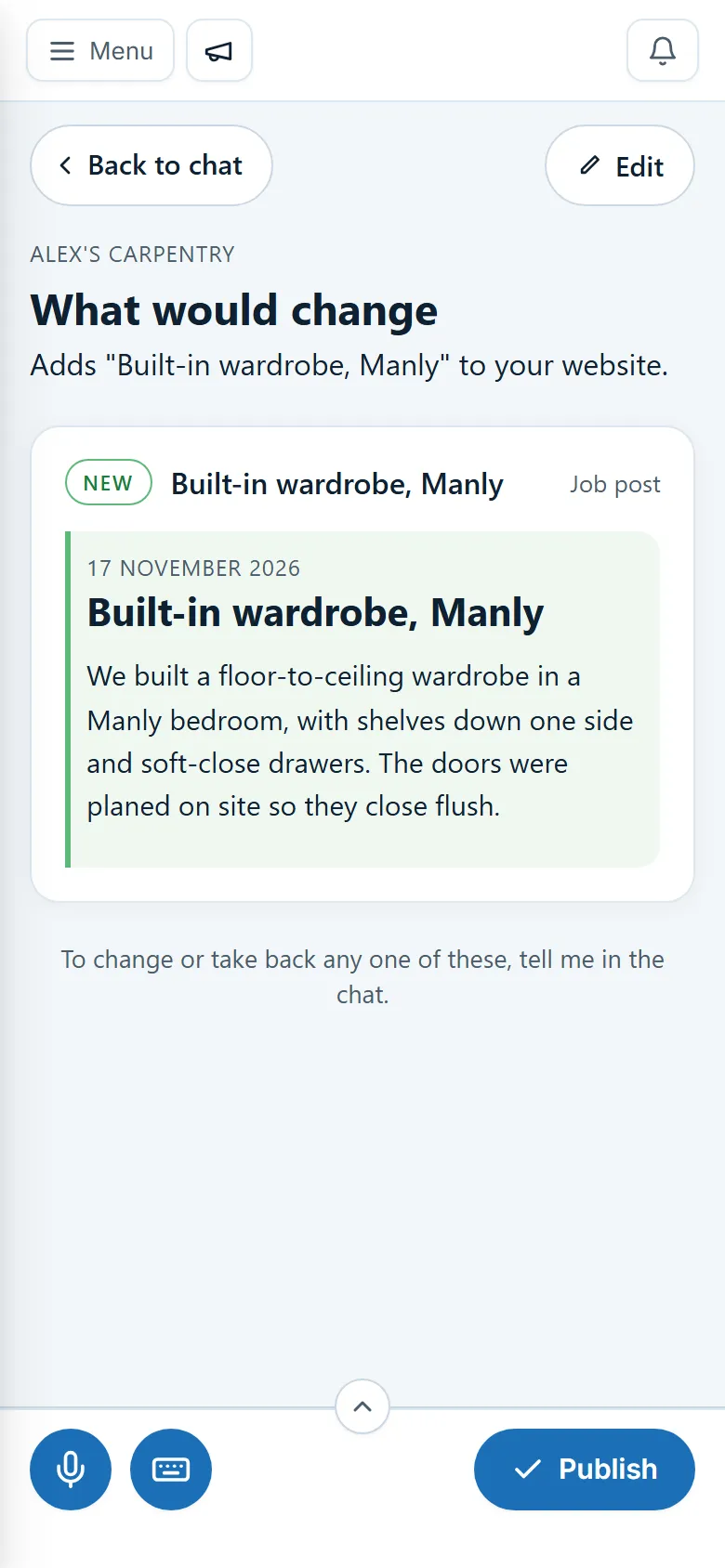
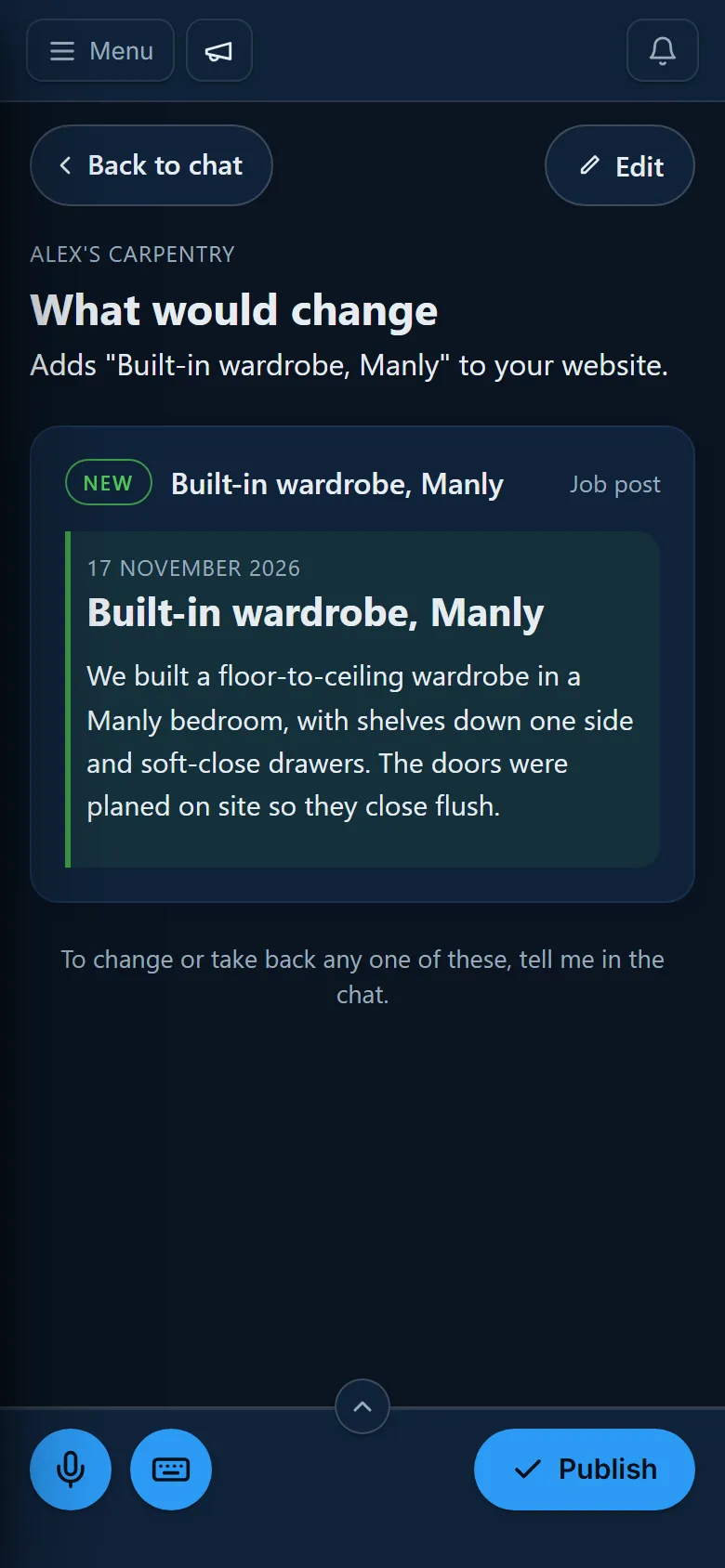
- Review changes shows exactly what would change. To change the words, tap Edit, make your changes, then Save changes. Or just say what to change in the chat.
- Tap Publish. You’ll see “Published. It’ll show on your website in a minute or two.”
Changed your mind
- Before it’s live: say “drop it” in the chat.
- After it’s live: ask in the chat to take it down. The job is archived, and it can be put back.
Waiting to go live
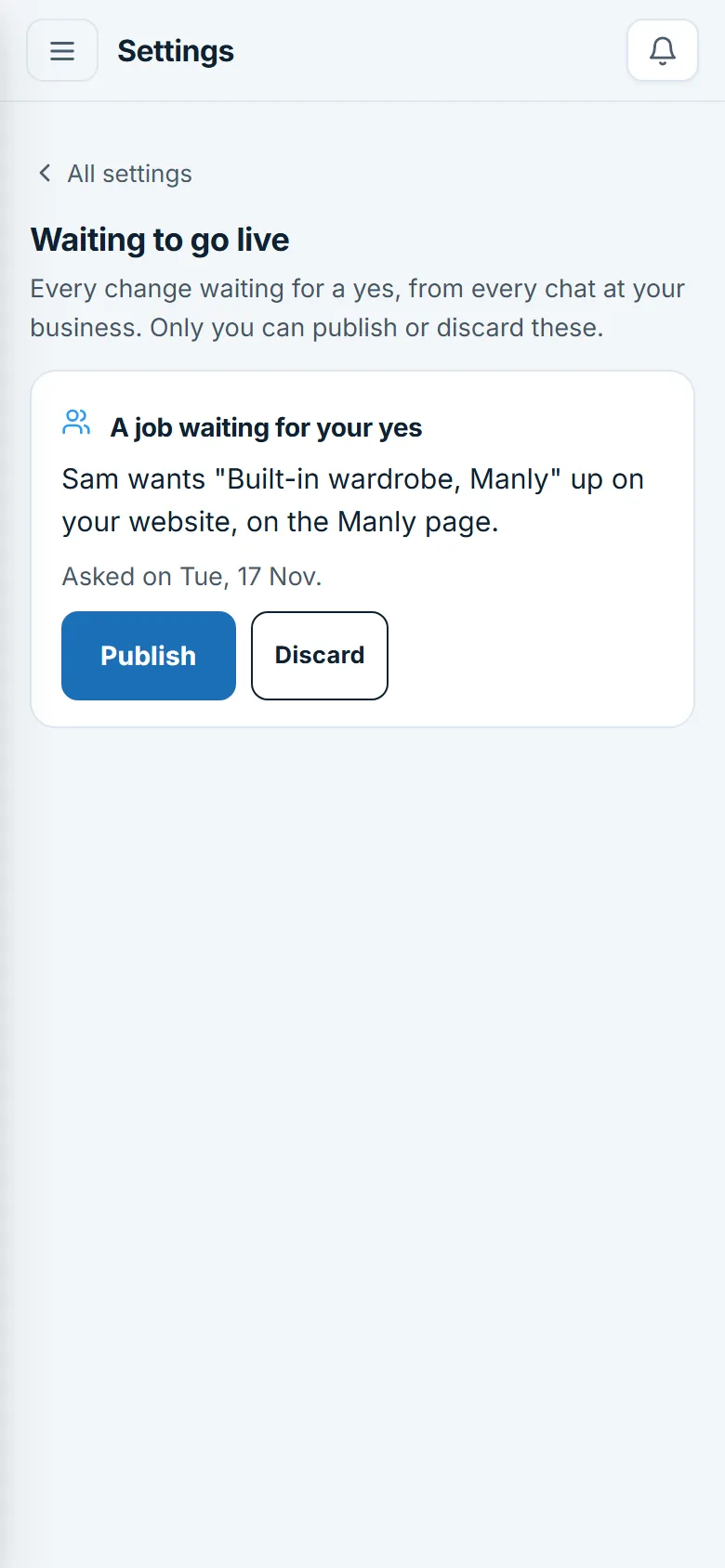
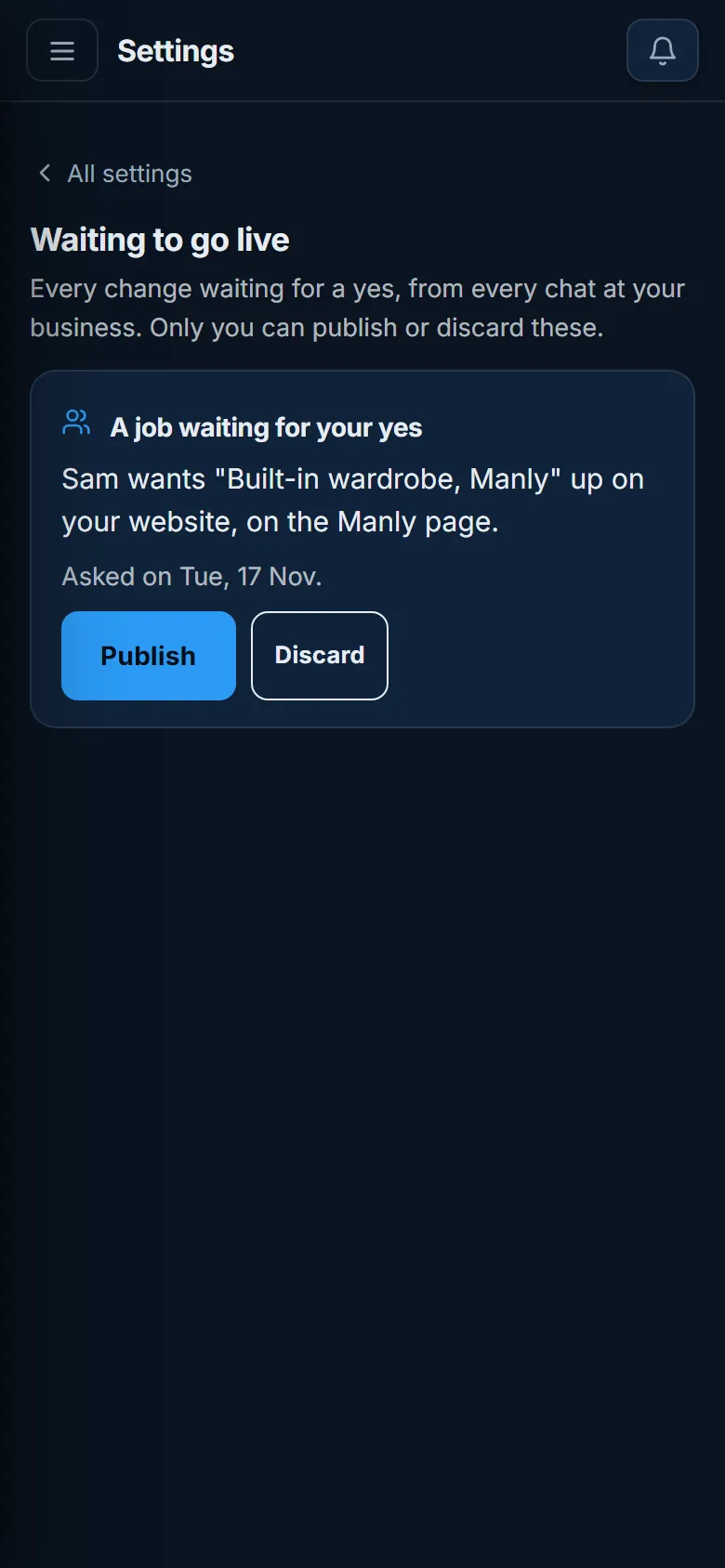
Settings > Waiting to go live lists every change waiting for a yes, from every chat at your business. Publish and Discard each ask once more: Publish now or Cancel, Discard or Keep it.
Owner only
Only the owner sees Waiting to go live.
Staff
- On a website NearMe built, staff can publish or discard changes that are all their own.
- On a WordPress website, a staff member’s job goes to the owner for a final yes.
Still stuck? Tap Get help in the app, or email connect@nearme.com.au.