

Change something on your website
On a website NearMe built, ask in the chat and NearMe changes the words. You check the change, then publish it.
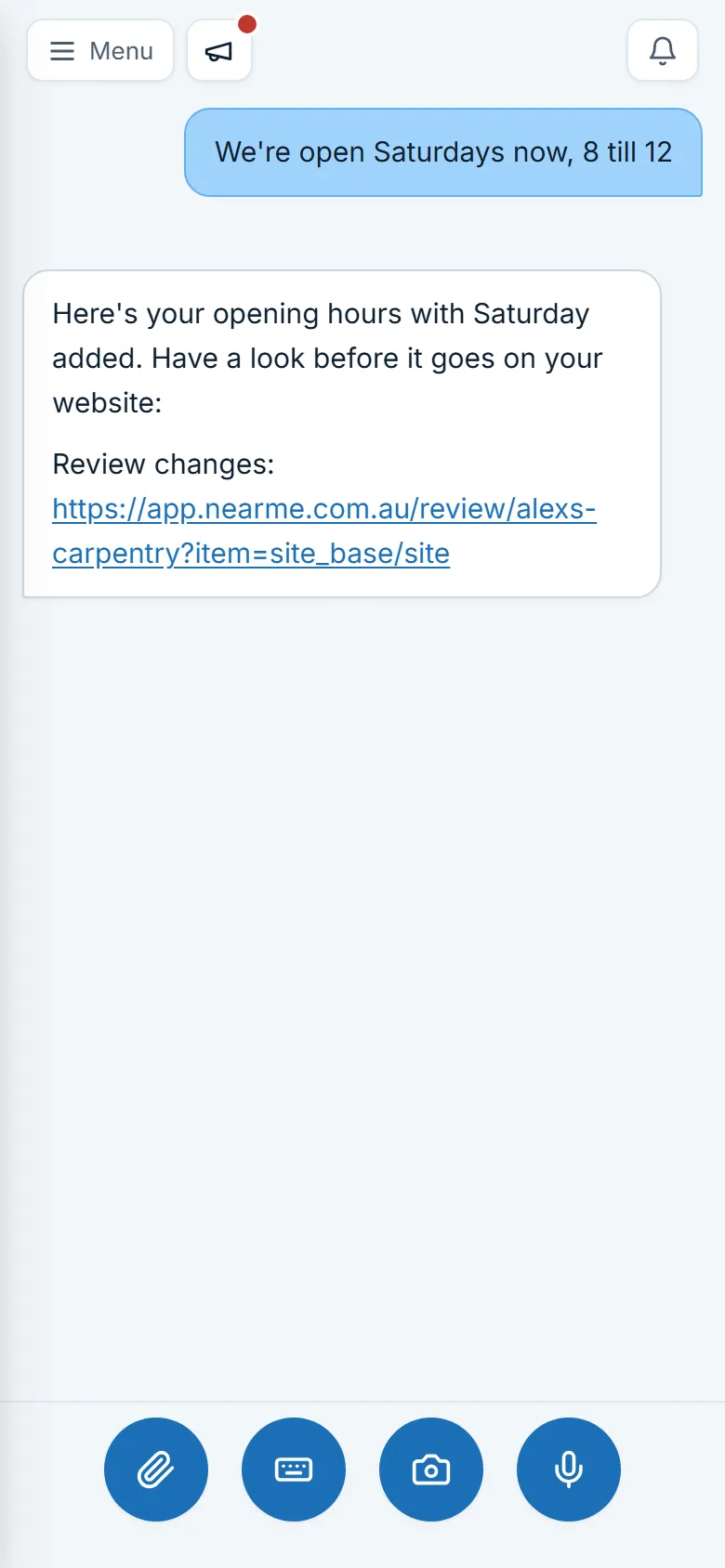
- In a chat, say what to change. For example: “We’re open Saturdays now, 8 till 12.”
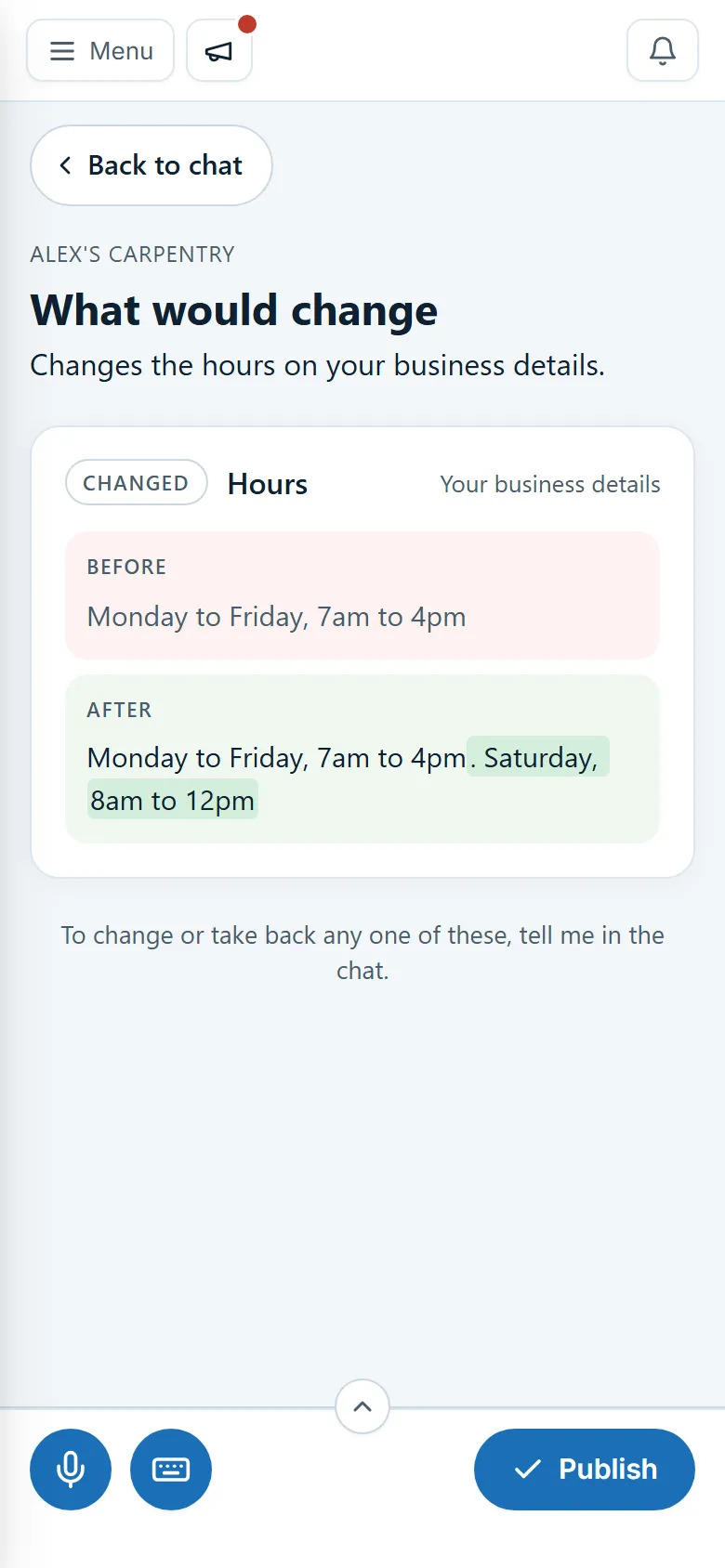
- NearMe’s reply links to Review changes. It shows what’s there now and what it would become.
- Tap Publish when it’s right. Nothing goes on your website until you say so.
What it can change
- Words on your site: services, questions and answers, suburb pages, jobs, headings and blog posts.
- Your phone, email, address, hours, tagline, service area and social links.
- Adding or removing a question and answer, or an item in a list.
- A new suburb page, or a new blog post if your site already has posts.
Changing how your site looks
Moving a section, a bigger logo or a new button, on one page or on every page at once: NearMe’s website editor does these too, on a website NearMe built. You see a preview of your changed site, then Publish or Discard. To take back your latest change, ask in the chat. If the editor isn’t on for your business yet, NearMe tells you, offers the nearest thing it can do, and passes it to our team if it matters.
What it can’t change
- Where your enquiries go, the codes that link your site to other accounts, star ratings, or a customer’s review beyond fixing a typo.
From Settings
The owner can also change a detail in Settings > Business details. On a website NearMe built you’ll see “Saved. The change to your website is ready for you to look at. It goes live when you publish it.”
WordPress
On a WordPress website, NearMe works only on its own job boxes and the jobs it posted.
Still stuck? Tap Get help in the app, or email connect@nearme.com.au.