

Chats
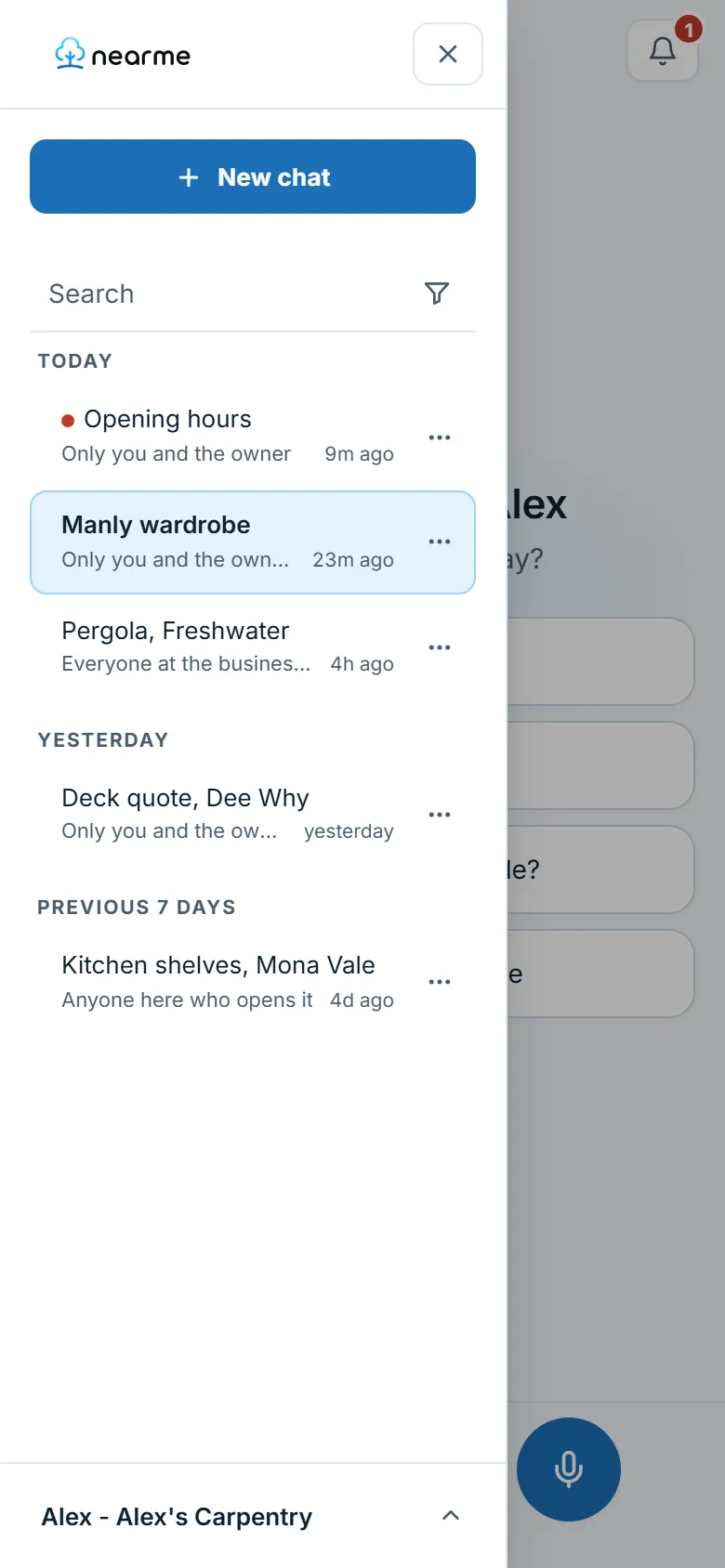
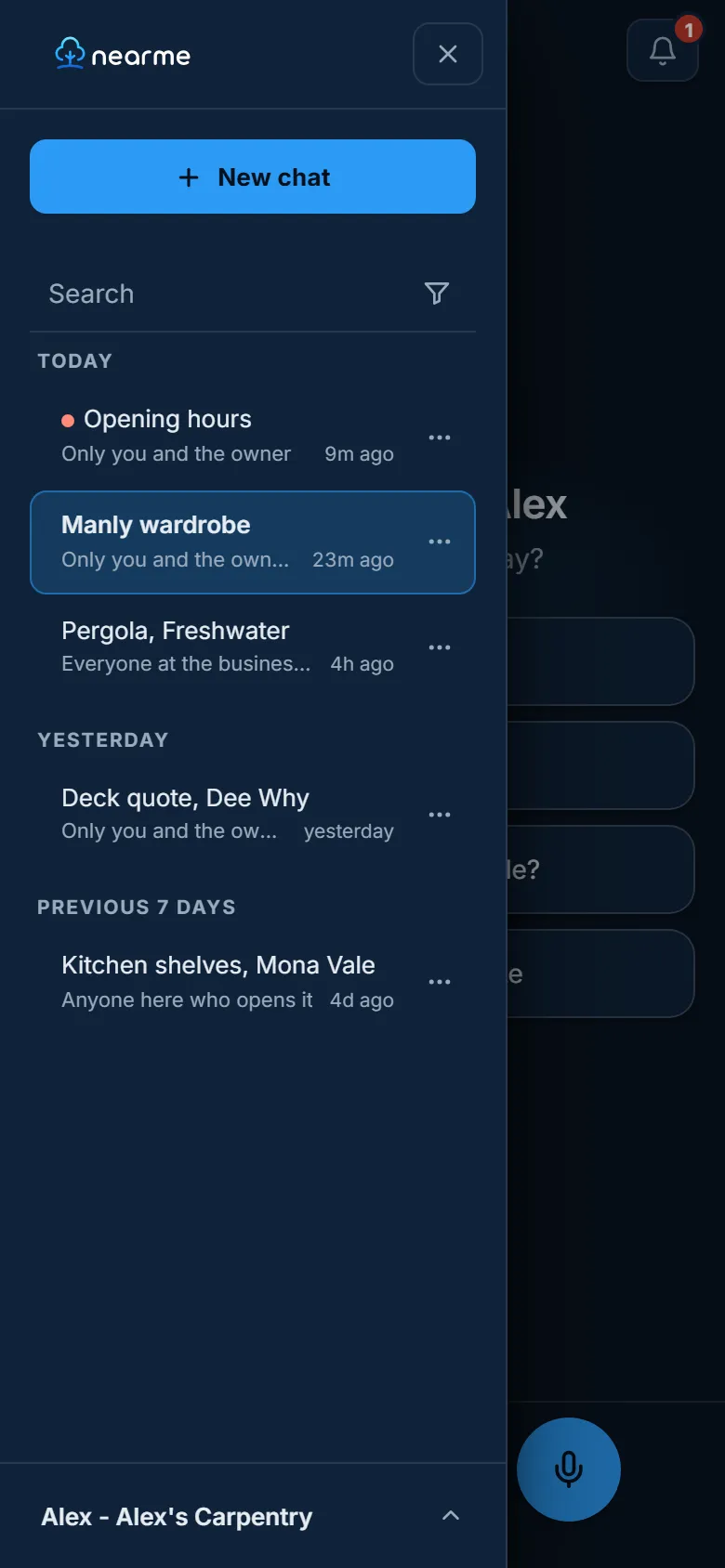
Keep each job or question in its own chat. Your chats are in the sidebar. On a phone, tap Menu.
- New chat starts one. Only you and the owner can see it until you change that.
- Search finds a chat by its name, or by who started it. The filter button beside it sorts (Recent, Oldest, Name) and filters (All, Unread, Mine, Shared). Reset clears them.
- Under each chat: who can see it, “shared by” and a name if someone on your team started it, and “main chat” for your first one. A red dot means something new.
A chat’s menu
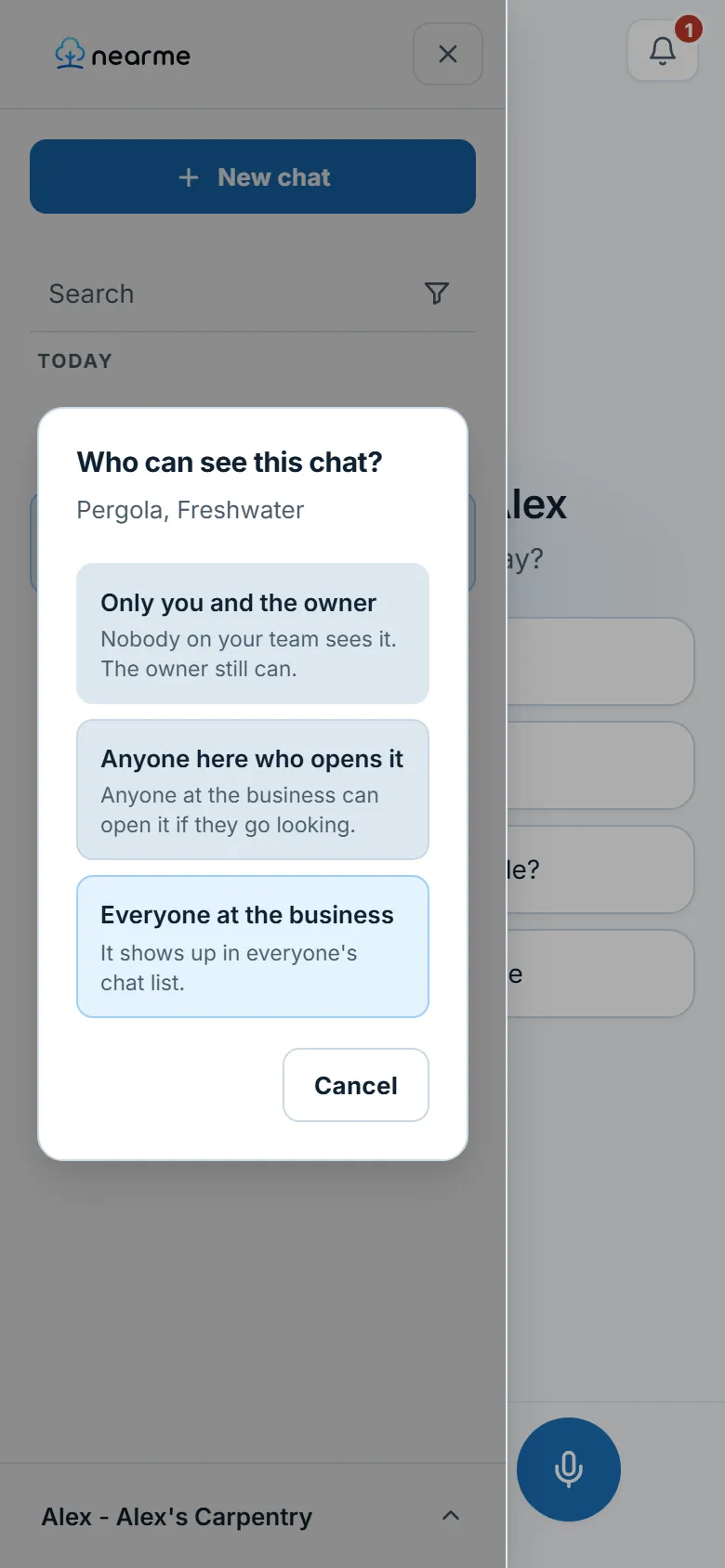
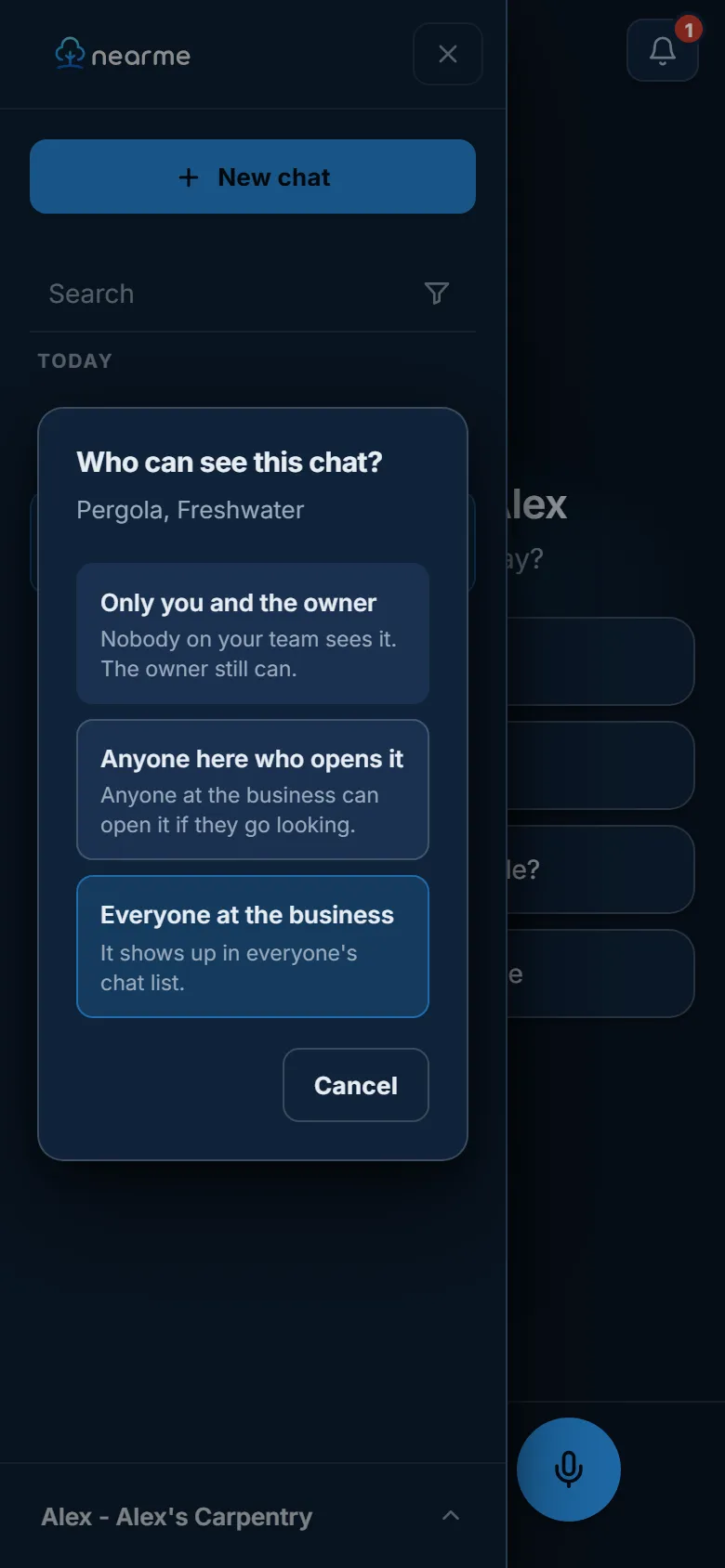
Tap the three dots beside a chat for Rename, Who can see this and Delete this chat.
- Rename: type a Name, then Save.
- Who can see this chat? Tap one and it’s saved: Only you and the owner (“Nobody on your team sees it. The owner still can.”), Anyone here who opens it (“Anyone at the business can open it if they go looking.”) or Everyone at the business (“It shows up in everyone’s chat list.”).
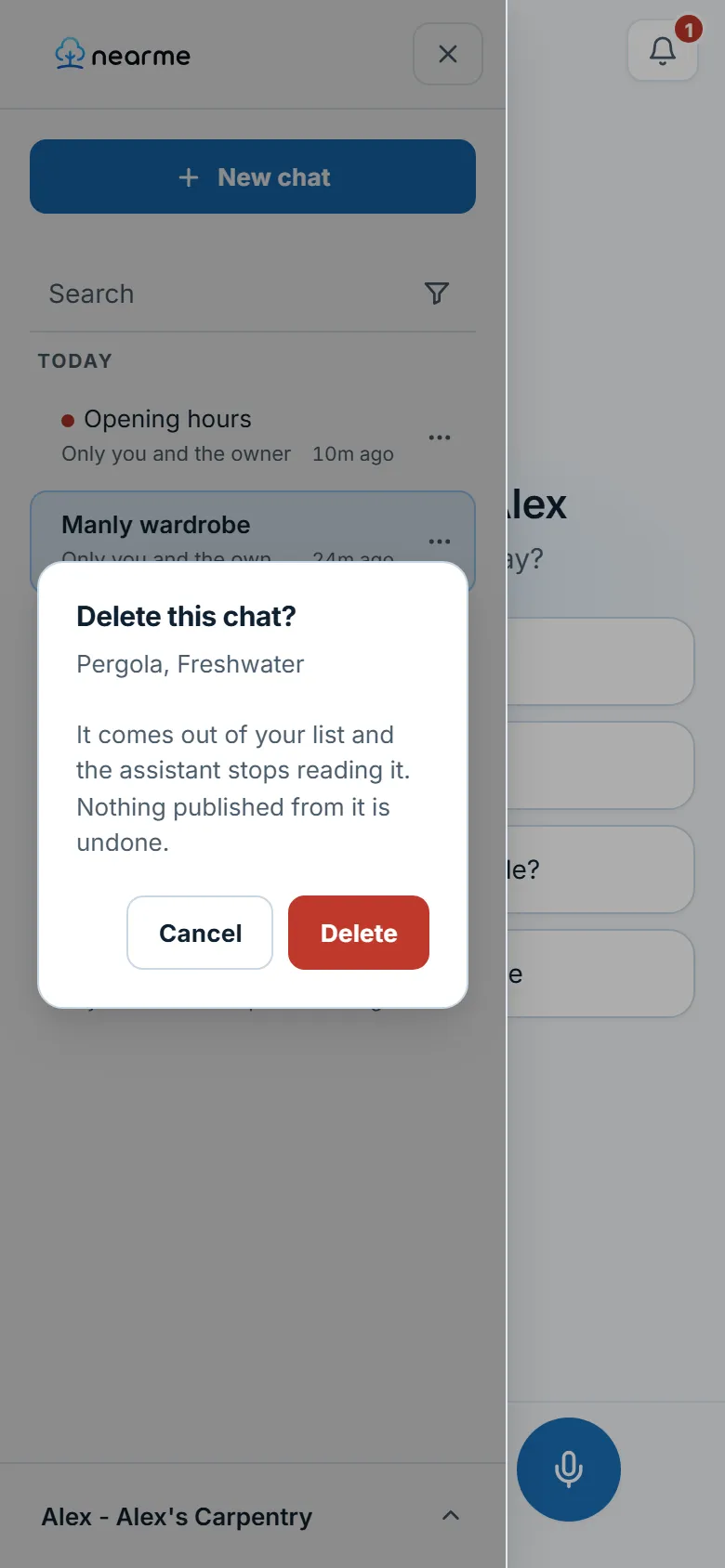
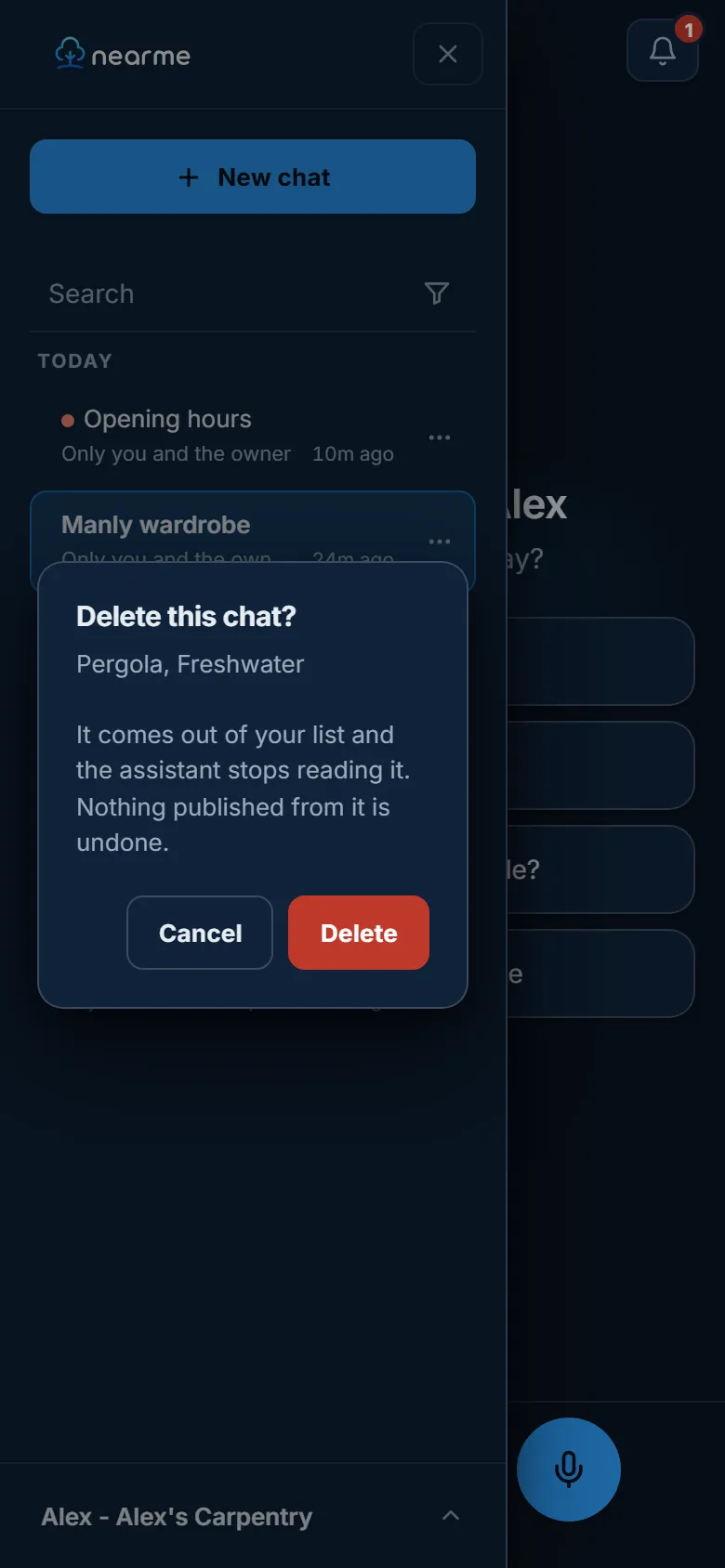
- Delete this chat? “It comes out of your list and the assistant stops reading it. Nothing published from it is undone.” Tap Delete or Cancel.
Good to know
Only the person who started a chat, or the owner, can change or delete it. Your main chat can’t be deleted.
Still stuck? Tap Get help in the app, or email connect@nearme.com.au.