

Install NearMe on your phone
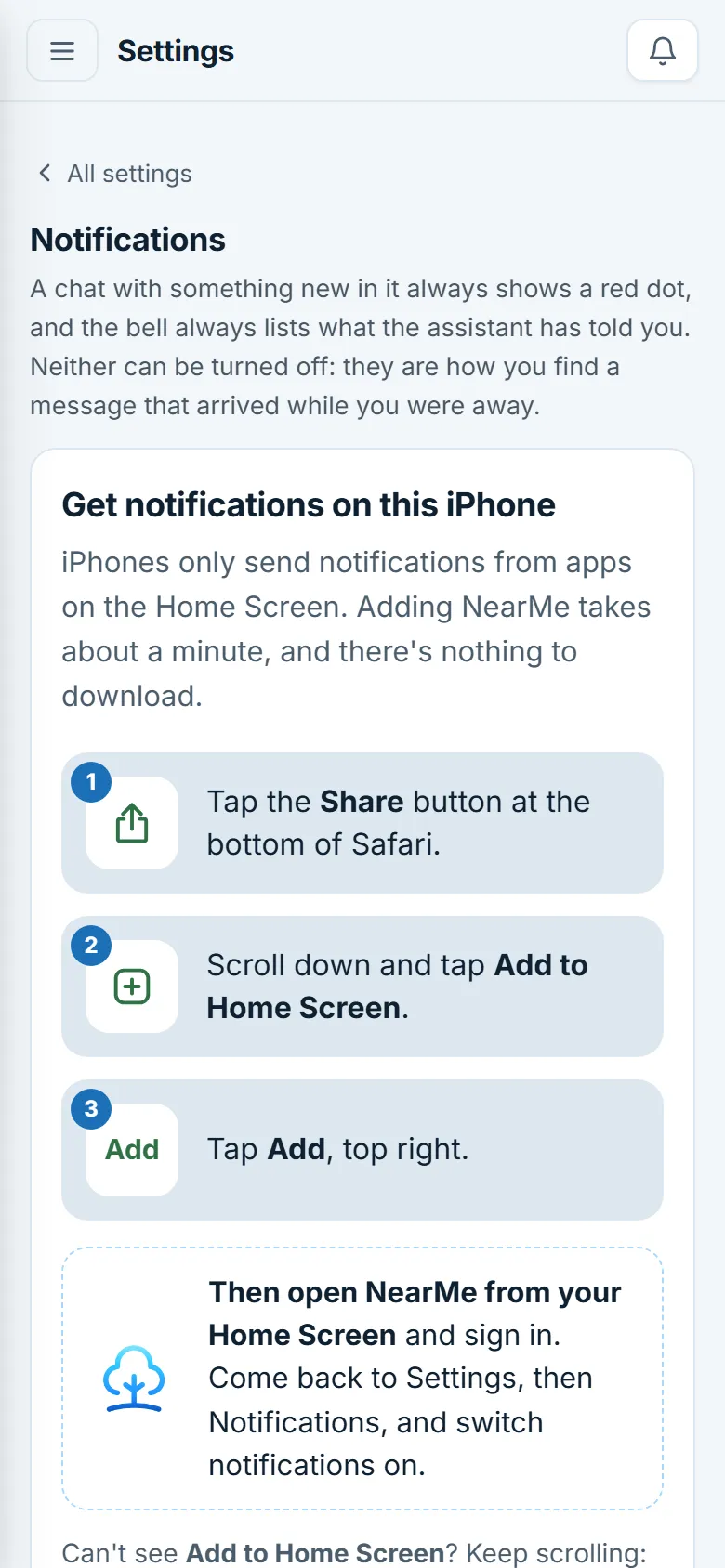
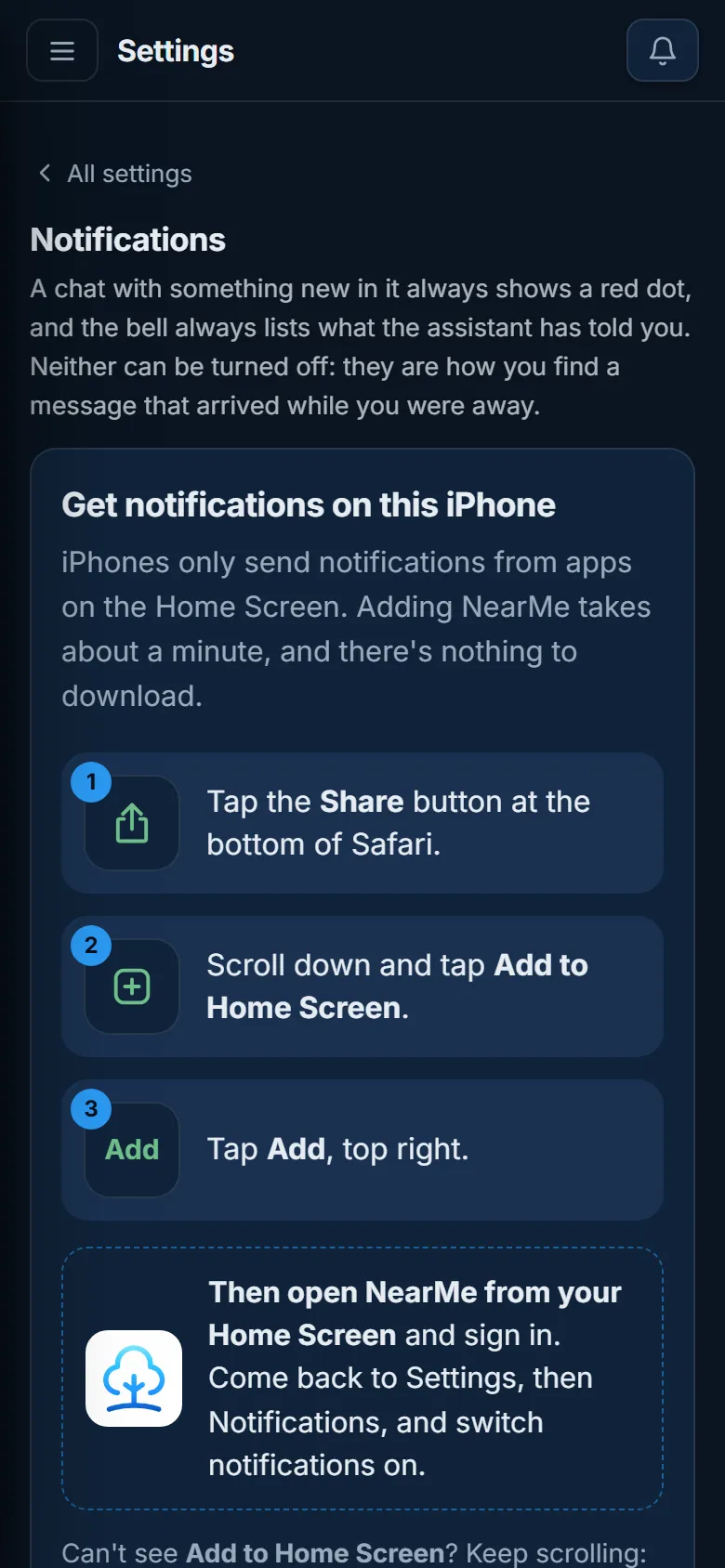
NearMe runs in your phone’s browser, so there’s nothing to download. Add it to your Home Screen so it opens like an app, then turn on notifications.
iPhone
You need iOS 16.4 or later. Open NearMe in Safari and sign in, then:
- Tap •••, then Share.
- Tap Add to Home Screen.
- Leave Open as Web App on and tap Add.
Tip
On an older iPhone, tap Share at the bottom of Safari, then Add to Home Screen, then Add. Chrome on iPhone works too. Opened the link inside Facebook, Instagram or the Google app? Open it in Safari first.
Turn on notifications
- Open NearMe from your Home Screen and sign in.
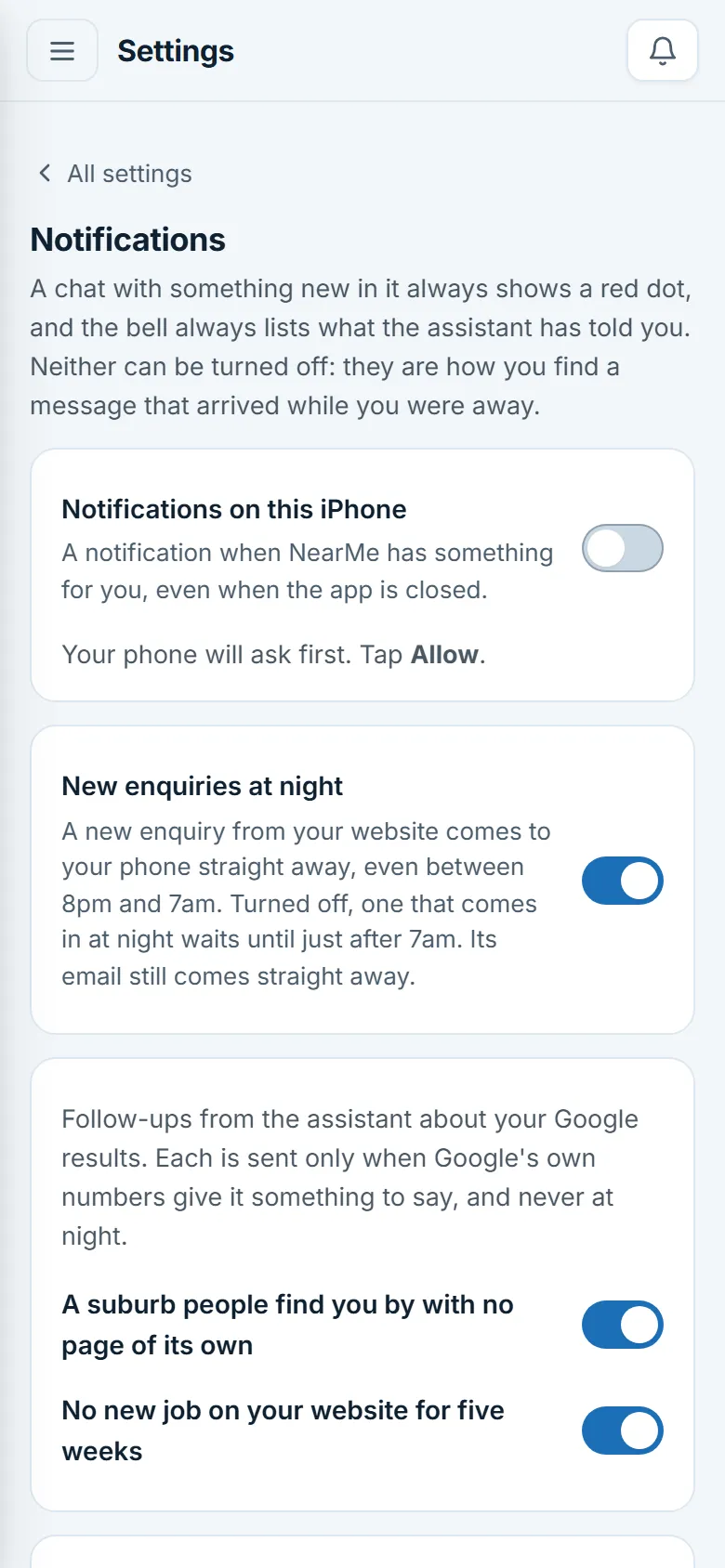
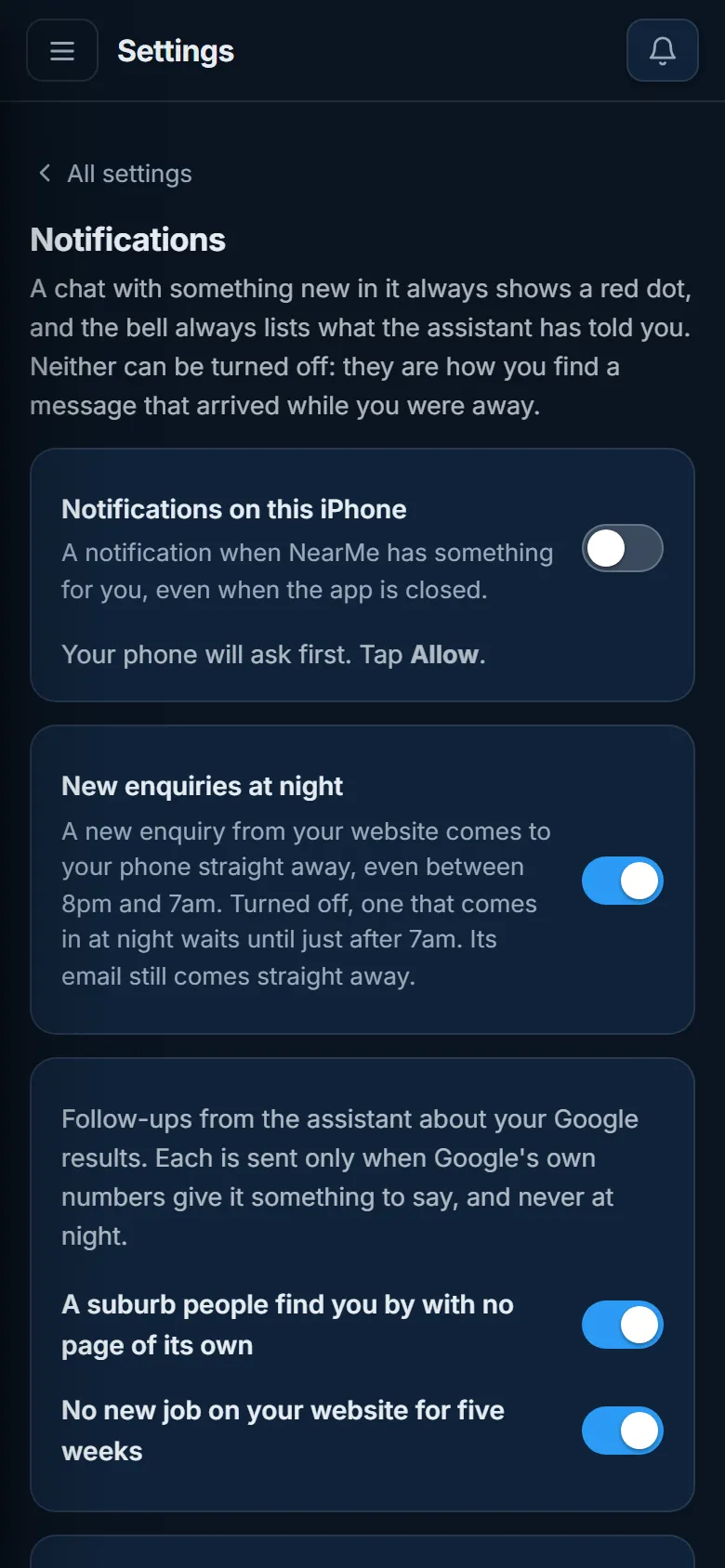
- Go to Settings > Notifications and switch on Notifications on this iPhone.
- Your phone asks first. Tap Allow.
- Tap Send me a test notification to check it works.
Android
Open NearMe in Chrome and sign in. In Settings > Notifications, switch notifications on and tap Allow. Adding NearMe to your Home screen is optional.
On a computer
In Settings > Notifications, switch on Notifications on this computer.
Tip
The chat also shows Get notifications on your phone. Tap Show me how for the same steps.
Still stuck? Tap Get help in the app, or email connect@nearme.com.au.